Facebook
 Google
 GitHub
 Linkedin
Hello everyone;
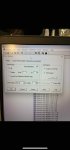
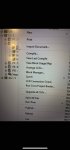
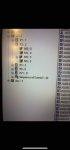
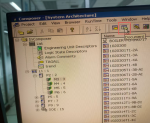
The DCS we use on site is ABB Symphony control system, and the configuration software is ABB Composer. I checked the information and learned that we can print the control logic of each controller in Composer, but when I open Composer, select a controller, right-click the mouse and find that the print option is gray, but it is possible to open a logic page and print a logic page separately.
I have seen the screenshots printed by others before, and the print option in that screenshot is black and can be executed.
Can anyone help me analyze the reason for this?
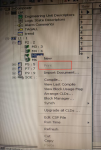
The DCS we use on site is ABB Symphony control system, and the configuration software is ABB Composer. I checked the information and learned that we can print the control logic of each controller in Composer, but when I open Composer, select a controller, right-click the mouse and find that the print option is gray, but it is possible to open a logic page and print a logic page separately.
I have seen the screenshots printed by others before, and the print option in that screenshot is black and can be executed.
Can anyone help me analyze the reason for this?