Facebook
 Google
 GitHub
 Linkedin
Factory I/O: A Modern PLC Simulation Tool to Learn the Fundamentals
Finding a good PLC simulator can be challenging. Read an assessment of Factory I/O and learn how it works, how to get started, and how to use it in your automation learning journey.
The demand for skilled automation professionals and PLC programming experts has increased significantly over the years as industries continue to adopt modern automation systems. Despite this growth in demand, most institutions and individual learners face challenges in sourcing programmable hardware, sensors, and actuators to enhance their practical learning experience.
A similar challenge is faced by companies attempting to train their workforce, which is often limited by aspects such as the need for real-world scenarios in their PLC training, safety concerns, and high equipment costs. This is where Factory I/O, a 3D virtual factory simulation environment, offers a potential option to learn PLC programming in a more immersive feeling of working with real-world equipment in a virtual factory environment, all within the computer software.
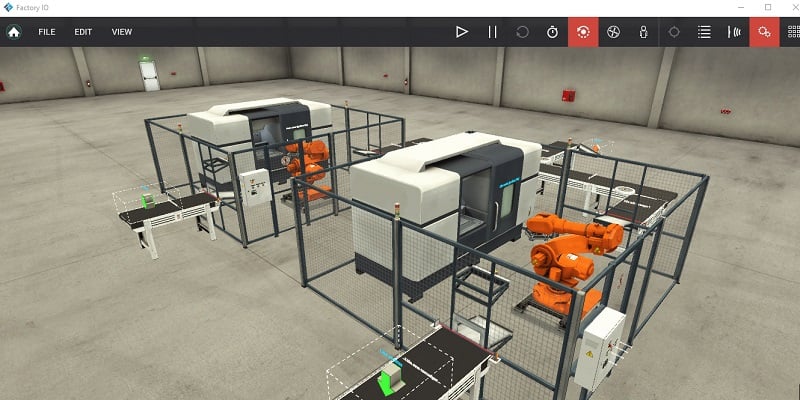
Figure 1. The production line scene in Factory I/O.
Factory I/O offers a bridge between practice and theory for anyone teaching or learning PLCs in a classroom, home workshop, or corporate training rooms by supporting a range of manufacturers and industry-standard programming languages.
In this article, we will learn how to get started with Factory I/O, from downloading the software to building factory scenes. In a following article, we will walk through an example tutorial.
Getting Started with Factory I/O
When considering simulation tools like Factory I/O, educators and professionals need to ask the question of accuracy when it comes to mirroring real-world industrial automation. Perhaps the most realistic virtual industrial environment can also be connected directly with both physical PLC hardware and software-based PLCs. This offers not only on-screen visualization, but also a functional learning platform.
To begin using Factory I/O, you must first download and install the application on your computer. The application is designed for Windows, and it is advisable to have a computer with at least 8GB of RAM, 2GB of storage, and a capable graphics card.
With the specifications of your PC in check, you can now download the latest version of the software by visiting the official Factory I/O website. Locate the 'Try for free' button visible at the top of the main site, download the installer, and get a free 30-day (full-feature) trial, which is perfect for getting started. Once the installer is downloaded, run the .exe file as an administrator and follow the installation wizard's prompts, ensuring the OPC dependencies option is checked for flexibility when using the OPC Client Data Access driver, which we will work with in our following tutorial on Factory I/O.
When the software is first launched, a view of the sidebar appears, displaying navigation buttons including 'Documentation and tutorials,' 'New,' 'Open,' 'Scenes,' and 'Update checker.' The section also includes a license activation call-to-action if you are using a trial. Under documentation, there is an extensive range of tutorials that can help you get started, including how to add parts and scenes, plus a complete guide to Factory I/O.
Self-Paced Learning with Pre-built Scenes
Under 'Scenes,' there are pre-built scenes that tackle progressive learning, starting with beginner-friendly concepts and progressing to more advanced PLC programming concepts. These scenes encompass a range of standard industrial processes, from simple start/stop systems to complex production lines, catering to more advanced professionals. These pre-built scenes can be customized to suit your different learning approaches.
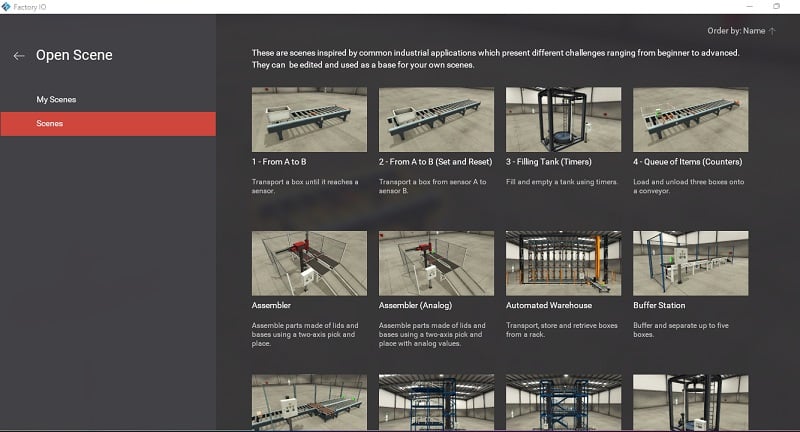
Figure 2. Pre-built scenes for progressive PLC programming learning.
If scene customization is not enough for you, an alternative approach is to create new scenes by clicking on 'New,' which opens an empty factory environment with parts that can be dragged and dropped into place according to the targeted design approach.
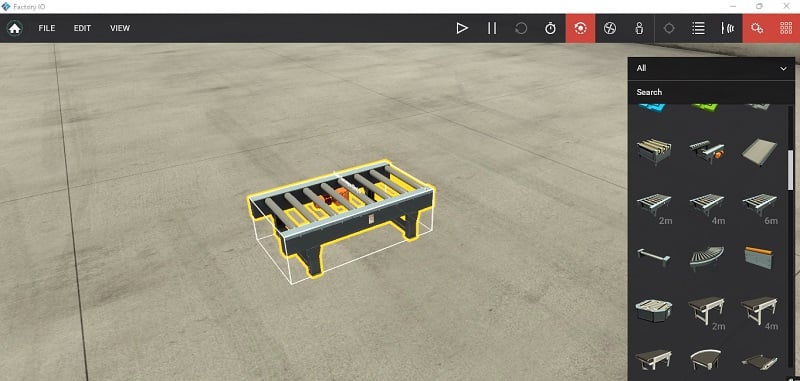
Figure 3. A two-meter 3D conveyor system on the virtual factory floor to create a new scene.
Adding Drivers for Major PLC Brands
For effective communication and integration with real or virtual PLCs, 'drivers' software modules are used to translate sensor input and actuator inputs according to the PLC program.
To access drivers in an open scene, click on 'file' or use the keyboard shortcut F4 to open a new driver window. This window displays a full list of sensor inputs and actuator outputs available in the specific scene. A drop-down allows for selecting the specific driver to use, supported by several major PLC brands.
- Some brands (for example, Siemens) have drivers that communicate to Factory I/O via TIA Portal and S7-PLCSIM, or respective software.
- Allen-Bradley virtual PLCs can be directly configured using Ethernet/IP in Studio 5000.
- Mitsubishi has no direct driver integration; instead, this uses an OPC DA/UA driver together with the MX OPC Server to communicate with Factory I/O components.
All of the IEC 61131-3 programming languages are supported, and Factory I/O provides several pre-set PLC brands, allowing users to choose from these languages based on their preference and the selected driver.

Figure 4. Driver selection dropdown in Factory I/O.
Creative and Custom Project Ideas using Factory I/O
Several project iterations can be implemented in Factory I/O in addition to the pre-built scenes. Equipped with a range of components, instructors can easily create lesson plans, lab assessments, and custom factory design projects for both entry-level learners and experts. A few basic projects that teach the fundamentals of PLC logic, sequential control, and digital I/O can be considered.
- A multilevel elevator system.
- Automatic parking system.
- Robotic arm pick and place workstation.
- Simulated CNC tool changer.
- Fully automated warehouse sorted with barcode simulation.
Potential Limitations
As Factory I/O stands as a potential learning tool for PLC programming with limited hardware, it presents some limitations that may have a slight impact on the learning journey.
These limitations may include failing to learn cable routing and I/O module connections due to a lack of physical wiring in a virtual factory environment.
Another challenge is the computer hardware-dependent scene; as complexity grows, latency in real-time control can affect performance in high-speed processes.
Finally, the software's license cost may require budgeting or scaled deployment in institutions.
Despite these constraints, the software remains a scalable and accessible tool for logic development, testing process scenarios, and getting started with automation.
Next Article: Tutorial
We have discussed the very basics of getting started with Factory I/O, but in our next article, we will learn how to configure Mitsubishi's GX Simulator and MX OPC Server to communicate with Factory I/O.
Stay tuned, and happy programming!
All images used courtesy of the author.